These instructions are only for those who have set up the email-app password.
Procedure for resetting your password in Outlook
Figure 1: Cancel Outlook Mailbox Registration
If the Windows Security window for signing in to a mailbox in Outlook opens again, click Cancel.
Click the Inbox for the relevant mailbox. Next, click Require password in the lower-right corner of Outlook.
After that, the system will attempt to log in automatically, and the Connected to Microsoft Exchange status will be displayed.
Figure 2: Outlook Password Required
If the Outlook Windows Security window appears again after you click Password Required, log in to the IAM-Portal.
Under Self-service, click Email App Password. In the new window, click Start.
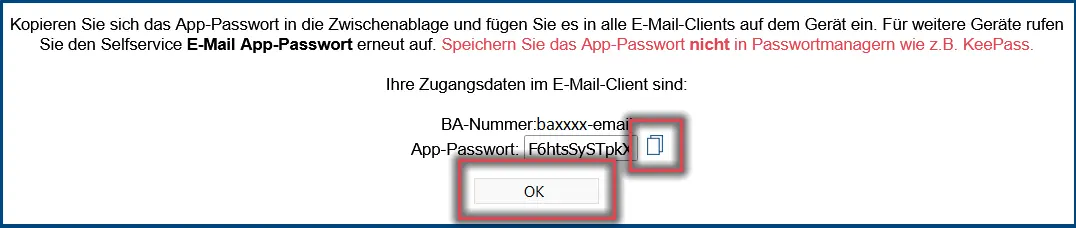
Figure 3: Copying the email app password
Note:
If you right-clicked on the password field in the Outlook login window, you'll need to close the login window and click Require password again.
Right-clicking causes the password to be pasted twice when you enter it, which causes the login to fail; if you try too many times, the email app account will be locked.
Figure 4: Save Outlook login credentials
Now click the copy icon to the right of the app password. The password will be copied to the clipboard.
Left-click on Password in the Outlook login window. Then paste the password using the CTRL+V shortcut.
Check the box next to Save login information and then click OK.